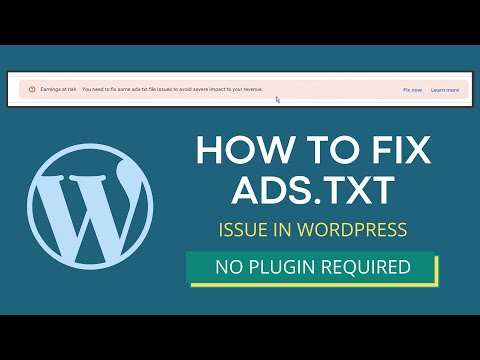
The Issue Of Ads.Txt Not Found In WordPress
Ads.txt is a file that contains information about vendors authorized to sell a publisher's advertising inventory.
If a website uses programmatic advertising, it's important to have an ads.txt file. However, some WordPress users have faced the issue of ads.
txt not being found on their site, which can lead to problems with their advertising. There are several reasons why ads.
txt may not be found on a WordPress site. One common issue is that the file may not have been uploaded to the root directory of the website.
Another issue could be that the file was uploaded with the wrong file name or in the wrong format. To solve this issue, WordPress users can try uploading the ads.
txt file again, ensuring that it's in the correct location and has the correct file name and format.
They can also check if their website has any caching plugins that may be causing the file to not show up, and disable those plugins temporarily if necessary.
It's important to resolve this issue promptly to ensure that your website's programmatic advertising is working effectively.
How to Upload Ads.txt in wordpress (with or without plugin)
Are you looking to upload an Ads.txt file to your WordPress website to comply with advertising policies?
There are a couple of ways you can do this, with or without a plugin.First, let's review what an Ads.
txt file is. Ads.txt is an industry stKamurd created by the IAB to ensure transparency in programmatic advertising.
Essentially, it's a text file that contains a list of authorized digital advertising sellers for your website.
It helps prevent counterfeit inventory and protects your ad revenue.To upload an Ads.txt file to your WordPress website without a plugin, you can follow these steps:
- Create a new text file and name it "ads.txt".
- Add the necessary information to the file. You'll need the following fields for each authorized seller: "domain name", "seller ID", "certification authority ID", and "app or site ID". For example:```google.com, pub-0000000000000000, DIRECT, f08c47fec0942fa0```
- Save the file and upload it to the root directory of your website using FTP or the File Manager in cPanel. Alternatively, you can use a plugin like "Ads.txt Manager". With this plugin, you can easily add, edit, and manage your Ads. txt file directly from your WordPress dashboard. Simply install and activate the plugin, then go to Settings > Ads.txt to update your file.Uploading an Ads.txt file to your website is an important step to ensure compliance with advertising policies.
Whether you choose to do it manually or with a plugin, make sure to keep your file updated and accurate to protect your ad revenue.
Understanding Ads.Txt
Ads.txt is an IAB initiative that aims to increase transparency in the digital advertising ecosystem, in particular addressing the issue of counterfeit inventory and minimizing fraud.
For publishers, implementing ads.txt involves placing a text file on their website that lists the authorized digital advertising vendors who are allowed to sell their ad inventory.
This prevents unauthorized sellers from selling fake ad inventory and helps advertisers ensure that they are getting legitimate ad placements.
If you are a WordPress user and your website is not showing the ads.txt file, there may be a few reasons.
It could be that the file is not uploaded to the root directory of your website, or the file permissions could be incorrect.
You can also check that your website is not blocking the file using a robots.txt file. It is important to ensure that your ads.
txt file is up-to-date and includes all the authorized advertising vendors to maximize transparency and minimize fraudulent activity.
Where is my ads txt file in WordPress?
If you are using WordPress for your website, you may be wondering where to find your ads.txt file. Ads.
txt is a file that lists all authorized sellers of your ad inventory, and is required by many ad networks and exchanges in order to sell ads on your site.
To find your ads.txt file in WordPress, you can follow these steps:
- Log in to your WordPress dashboard.
- Go to the "File Manager" or "FTP" section of your hosting account.
- Navigate to your website's root directory.
- Look for a file called "ads.txt". If you don't see it, you can create one by clicking "New File" and entering "ads.txt" as the file name.
- Open the file and add the authorized sellers of your ad inventory, one per line. You can find this information in your ad network's or exchange's account settings.
Once you have added all authorized sellers of your ad inventory to your ads. txt file, save and upload it to your website's root directory. This will ensure that your site is compliant with ad network and exchange requirements.
Why are my ads not showing on WordPress?
If your ads are not showing on WordPress, there could be a few reasons why. One possible reason is that your ads may not be properly configured or targeted to the right audience.
It's important to ensure that you have set up your ads correctly and selected the appropriate targeting options to reach the right people.
Another reason why your ads may not be showing could be due to ad blockers. Many internet users now use ad-blockers to prevent ads from appearing on their screens.
If your audience is using ad-blockers, this could be the reason why your ads are not showing up.You may also want to check if there are any conflicts with other plugins or widgets that you have installed on your WordPress site.
Sometimes, conflicts can occur that prevent ads from displaying properly.In order to ensure that your ads are showing on WordPress, it's important to regularly monitor your ad campaigns and make any necessary adjustments to improve their performance.
By doing so, you can increase the visibility of your ads and reach your target audience effectively.
How do I enable ads on my WordPress site?
If you're looking to monetize your WordPress site by displaying ads, there are several options available to you.
One of the most popular is to use Google AdSense, which allows you to earn money by displaying ads on your site that are targeted to your audience.
To enable ads on your site using AdSense, you will first need to create an account with Google AdSense and then follow the steps to set up ads on your WordPress site.
This typically involves copying and pasting a code snippet into the header of your site, and then configuring the types of ads you want to display and where you want them to be placed.
Another option is to use a WordPress plugin that enables you to display ads on your site, such as Ad Inserter or AdRotate.
These plugins provide a range of options for configuring your ads, including the ability to display different ad types in different locations on your site, to show ads only to certain types of visitors, and to track your ad performance over time.
Overall, there are many ways to enable ads on your WordPress site, so it's worth exploring a range of options to find the approach that works best for you and your audience.
Ads.Txt Not Found In WordPress
If you are running a WordPress website and have recently received an error message indicating that the "ads.
txt" file could not be found, there may be several reasons why this is happening. The ads.txt file is a file used by advertising networks to verify that you are the owner of the website, and it is an important step in monetizing your website through ads.
One common issue that can lead to the ads.txt file not being found is a problem with the file permissions.
Make sure that the file is readable by the web server and that it is located in the correct directory.
Additionally, you may want to double-check that the file name is spelled correctly and that it is not being blocked by any security software.
Another potential issue is that your website is not properly configured to serve the ads.txt file. Check your website's configuration and make sure that it is set up to serve static files, including the ads.
txt file.Lastly, it is possible that the ads.txt file is missing altogether. If this is the case, you will need to create the file and add the appropriate information to it.
You can typically find this information by logging in to your advertising partner's account and navigating to the section on ads.
txt.Overall, resolving the issue of the "ads.txt" file not being found in WordPress may require some troubleshooting, but by following the steps outlined above, you can get your website back on track and ensure that you are properly monetizing your site through ads.
Common Reasons For Ads.Txt Not Found In WordPress
Ads.txt is a file that website owners can add to their site to verify the identity of their advertising partners.
However, sometimes the ads.txt file is not found in WordPress websites. There could be several reasons for this, including:
- Missing File: The ads.txt file may have been accidentally deleted or not created in the first place.
- Incorrect File Location: The ads.txt file needs to be located in the root directory of the website, but sometimes it may be placed in the wrong folder or subdirectory.
- Incorrect File Name: The filename for the ads.txt file must be exactly "ads.txt". Any deviation from this (such as "ads" or "ads_txt") will result in the file not being found.
- Cache Issues: Sometimes, the web browser or server cache can cause issues with finding the ads.txt file, resulting in a false "not found" error.
- Plugin Conflicts: Other plugins on the website may interfere with the retrieval of the ads.txt file, causing it to not be found.
It is important to ensure that the ads.txt file is located in the correct location with the correct filename and that there are no conflicts with other plugins or caching issues.
How to upload your ads txt file to the root directory WordPress?
To upload your ads.txt file to the root directory of your WordPress site, you can do the following:
- Access your website's server using an FTP client or through your web hosting provider's control panel.
- Navigate to the root directory of your WordPress site, which is often called public_html or www. This is where you should upload your ads.txt file.
- If you don't have an ads.txt file yet, create one using a plain text editor, such as Notepad for Windows or TextEdit for Mac. The file should contain your authorized Digital Advertising Alliance (DAA) account ID, which is usually provided by your ad network.
- Save the file as "ads.txt".
- Upload the ads.txt file to the root directory of your WordPress site using your FTP client or your web hosting provider's file manager.
- Verify that the ads.txt file is in the correct location by visiting yourdomain.com/ads.txt on a web browser.
By following these steps, you will have successfully uploaded your ads.txt file to the root directory of your WordPress site, which is required to comply with certain advertising guidelines.
How do I upload a file to the root of a WordPress site?
To upload a file to the root of a WordPress site, you can use the built-in Media Library feature or an FTP client.
If you want to use the Media Library, you can go to the dashboard of your WordPress site and select "Media" from the left-hand menu.
From there, you can click "Add New" and select the file you want to upload to your site's root directory.
Alternatively, you can use an FTP client to upload the file directly to the root directory. To do this, you'll need to connect to your hosting server using an FTP client and navigate to the root directory of your WordPress site.
From there, you can upload the desired file to the directory. Remember to exercise caution when uploading files directly to the root directory, as this can impact the functionality and security of your website if done improperly.
How do I find the root directory in WordPress?
In WordPress, the root directory is the top-level directory that contains all the files and folders of the WordPress installation.
To find the root directory, you can access the wp-config.php file, which is located in the root directory.
To access the wp-config.php file, you can use a file manager or an FTP client to log in to the server where your WordPress installation is hosted.
Once you have logged in, navigate to the directory where your WordPress installation is located and find the wp-config.
php file.Alternatively, you can use a code editor or the WordPress dashboard to view and modify the wp-config.
php file. In either case, once you have opened the file, you will be able to see the root directory path defined in a line that looks like this:`define('ABSPATH', dirname(__FILE__) .
'/');`This line defines the path to the root directory, which is stored in the ABSPATH constant.So, to summarize, the root directory in WordPress can be found in the wp-config.
php file, which is located in the top-level directory of the WordPress installation.


